Welcome to Shell UK Customer Services
General
What is the Shell App and how can it benefit me?
What is the Shell App and how can it benefit me?
The Shell App has four great features to keep you on the move:
- Shell GO+ Rewards progremme:
Shell GO+ Rewards. This refreshed loyalty and rewards programme is our way of showing appreciation to our loyal members.
The new features include:
-
- Members can earn points on fuel, plus at participating Shell service stations members can earn points on selected in store products when scanning their Shell App, card or key fob.
- Members can then visit the ‘Spend your points’ section to exchange their points for rewards and partner e-gift cards to save money, and they can choose a range of rewards, such as savings on fuel and instore products.
- Members will still have access to exclusive member benefits, such as 10% off deli by Shell, car and jet wash and Shell Helix and Advance engine oils. To provide more value to our members we have replaced the 10% off hot drinks member benefit with buy 7 hot drinks and get your next one free.
- CO2 Offset Programme
For Shell GO+ Reward members who have opted-in to the CO₂ offset programme, Shell will buy carbon credits to offset, or compensate, for emissions from any fuel purchased at a UK Shell service station. One credit represents the avoidance or removal of 1 tonne of carbon from the atmosphere and these credits are sold to Shell by carefully chosen nature-based projects – such as forest developments or grassland preservation projects – that capture and store carbon from the atmosphere.
For more information refer to the Terms and Conditions Carbon emissions terms and conditions | Shell UK
- Pay at pump
Letting you pay for fuel on your app from the comfort of your car.
- Station locator
Use the app to find your nearest service station, wherever you are!
Where can I download the Shell App?
Where can I download the Shell App?
Apple iTunes or Google Play stores on mobile devices
Follow the four steps to download and install the Shell App:
- Open the Apple iTunes store for iOS devices or Google Play store for Android devices
- Search for Shell - in iTunes for iOS and Google Play for Android
- Install to add the app to your device
- Find the Shell app on your device then open to register your details and get started.
Is my phone compatible for the Shell app?
Is my phone compatible for the Shell app?
In order to download the Shell App you will need to have the following software on your phone:
An Apple device requires iOS 15.0 or later
An Android device requires software 7.0 or above
If you are unable to install the latest software on your phone you can still participate in our Shell Go+ rewards programme by creating an account or logging into your Shell Go+ account online at https://www.goplus.shell.com
How can I find my nearest Shell Service station?
How can I find my nearest Shell Service station?
We have over 1000 Shell Service Stations in the UK.
To find your nearest station you can use the Shell website and Shell App.
They both feature a Station locator where you can search and find your nearest Shell Service Station.
Using the Shell App, follow these 5 steps:
- on the home screen tap ‘station locator’
- using searchtype the location or zoom into your chosen area on the map

- then tap ‘show stations in this area’ which will appear with Shell location fuel pins.
If no stations are available in the search area it might be there are no Shell service stations in the area or try searching again in the search bar.
4. Tap ‘filters’ to select services required at the station.
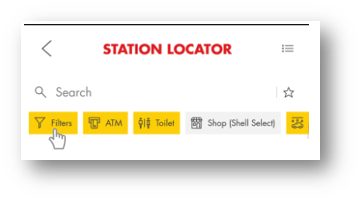
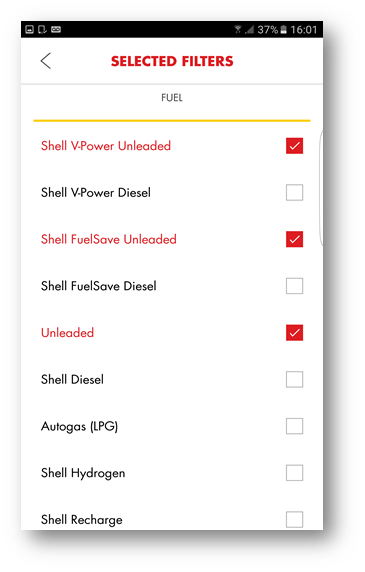
5. Select services including toilets, cash machines and shop to Fuel filters such as Unleaded,
Shell V-Power, Shell Unleaded
What can I do if the Shell app stops working?
What can I do if the Shell app stops working?
The Shell App is reliable and tested, however sometimes it might not work if there is:
- not enough internet connectivity
- too many other applications running on your device.
As a quick-fix, we recommend checking you have updated the app with the latest version.
If that does not fix the issue try uninstalling and re-installing the app.
Here’s how to uninstall the Shell App:
For IOS:
- Locate the Shell App from your home screen
- Press and hold the Shell App for a few seconds until all the App’s begin to shake - there is a ‘X’ sign on the top left corner of all Apps
- Click on the ‘X’ sign on the Shell App to delete or uninstall the app
For Android:
- Choose Application manager you will find this under Settings > Applications > Application Manager
- Scroll through applications and select Shell App
- Choose ‘UNINSTALL’
- After you have uninstalled the Shell App, open Android Play Store or the App Store, search for the Shell App then
- Open the Shell App and log in.
To help us improve the Shell app in future, please send us any crash reports when prompted in the app - we appreciate feedback.
How do you use my (GPS) location data?
How do you use my (GPS) location data?
We only use your location data (GPS) to find your nearest Service Station or if you are using the Pay at Pump function.
What happens if there’s no mobile phone signal?
What happens if there’s no mobile phone signal?
You may find the Shell app slow to open and Pay at Pump won’t work if there is no mobile signal as it requires a 3G or 4G signal.
However, we have free Wi-Fi at many Shell service stations for you to use if the mobile phone signal is too weak to work. This will allow you to use Pay at Pump, toggle on your rewards and register your visit by scanning your barcode at the till.
You'll need to make sure your GPS or location services are enabled.
You can also save your Shell Go+ card to your Wallet in your mobile device, this will allow you to scan your barcode and record your visit even with no mobile signal.
Is it safe to use a mobile phone on a forecourt?
Is it safe to use a mobile phone on a forecourt?
No, it is not safe to use outside your vehicle or whilst driving
However, it is perfectly safe to use a mobile phone inside your stationary vehicle once you're parked on the forecourt.
Once you’ve activated the pump, please leave your phone inside the vehicle or place in your pocket or bag.
How do I set or change app permissions on my mobile?
How do I set or change app permissions on my mobile?
To ensure your device is set up with the right permissions for the Shell App to successfully operate using Shell Go+, Pay at Pump and Station Locator, follow these steps:
For Android:
- On your mobile device tap Settings

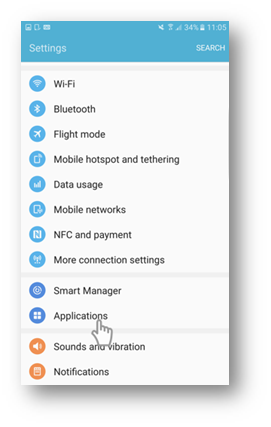
- Scroll down Settings and tap Applications
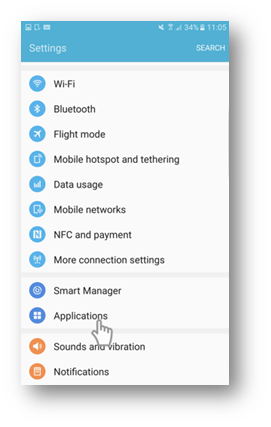
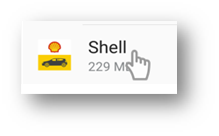
3. Select Shell App
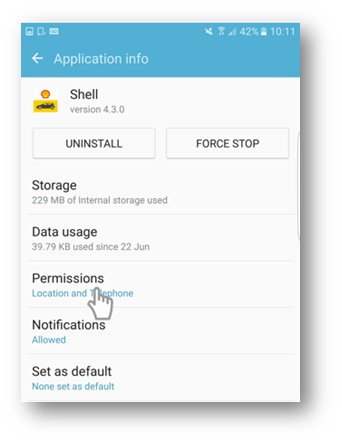
4. The Shell App will open with a list of app related settings. Tap Permissions
5. Check through the list of permissions – if they are grey they are not switched on.
Make sure you slide Location and Telephone settings to the right. They will turn from grey to blue.
6. You can also set push notifications which appear as screen messages on your device. To change preferences, tap back to Shell App as shown in Step 4 and tap Notifications.
To receive notifications slide ‘Allow Notifications’ on (showing in blue at the top)
For IOS:
To switch on GPS find the Settings cog, which looks like this

1. Scroll down the list of apps and select the Shell App
2. You can then change permission
Why do you require so many permissions for the Shell app?
Why do you require so many permissions for the Shell app?
The Shell app needs these permissions to work properly. To make the app as useful as possible, it needs your go-ahead to access your device operating system. Please be aware that we will never:
- communicate with your contacts
- create events in your calendars (or your contacts' calendars)
- and we won't ever store any of your contact data without your explicit permission.
Is there a way of allowing Location Services access only when I use the Shell app?
Is there a way of allowing Location Services access only when I use the Shell app?
Yes, this is exactly how the Shell app works.
The Shell app only uses your Location Services when the app is running on your mobile device.
However, without your permission to use Location Services, the app won't work to it's full potential, including use of Pay at Pump and Find Nearest Station as we can not determine your specific location.
To allow access to Location Services on your mobile device go to:
Settings, select 'Location Services' , select the Shell app, click on While Using the App.
Will I be charged for using the Shell App?
Will I be charged for using the Shell App?
The Shell App is completely free and there are no costs for using the service.
The app requires an internet connection, so please check that your network provider won't charge you for the mobile data used, or use our free Wi-Fi available at many of our Shell Service stations.
Why do I need GPS on?
Why do I need GPS on?
- to use station locator so that we can show where your nearest Shell station is.
- to use Pay at Pump so that we know when you are at a Shell station for you to enter the pump number and use the service.
GPS means ‘Global Positioning System’ and it locates your exact position to precisely find a Shell station closest to you.
Without GPS - the location icon on your device, finding your nearest station or planning your route won't be as accurate.
For Android:
- To switch on GPS find the Settings cog, which looks like this , then scroll along the dash where it shows wi-fi, location, sound etc

- Scroll down Settings and tap Applications
- Select Shell App
4. The Shell App will open with a list of app related settings. Tap Permissions
5. Check through the list of permissions – if they are grey they are not switched on.
Make sure you slide Location settings to the right. They will turn from grey to blue.
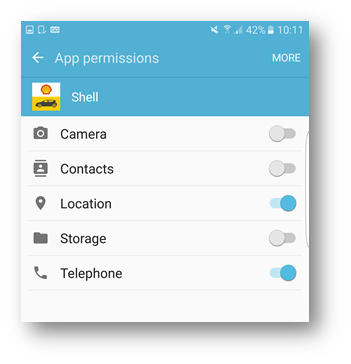
Tap the Location icon to turn on
Tip: on Android: if the location icon is greyed out GPS will be off – if it’s shown in blue it’s on.
For IOS: To switch on GPS find the Settings cog, which looks like this

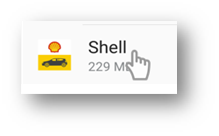
1.Scroll down the list of apps and select the Shell App
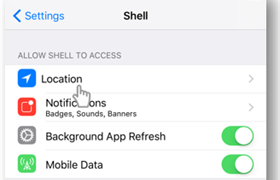
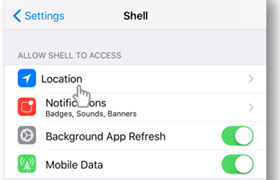
2.Select Location
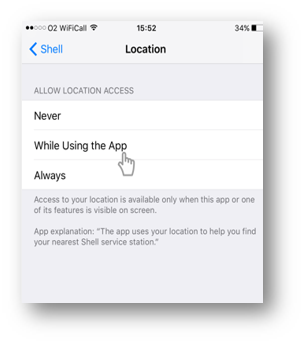
3. Click ‘While Using the App’ to allow location access
Other Shell App sections
Contact support
Service stations
Service stations
Chat with us anytime! Our Shell Virtual Assistant is available 24/7 to assist you. Simply click on the chat button at the lower right hand corner of the page to start a conversation.
If needed, our Shell Virtual Assistant can connect you to a live agent during business hours, Monday to Friday: 8:00 AM – 4:45 PM excluding public holidays.
Webform: Shell Service Station Enquiries
Shell GO+ Rewards
Shell GO+ Rewards
Chat with us anytime! Our Shell Virtual Assistant is available 24/7 to assist you. Simply click on the chat button at the lower right hand corner of the page to start a conversation.
If needed, our Shell Virtual Assistant can connect you to a live agent during business hours, Monday to Friday: 8:00 AM – 4:45 PM excluding public holidays.
Webform: UK Shell Go+ Rewards Enquiries
Shell Recharge
Shell Recharge
Simply click on the chat button at the lower right-hand corner of the page to start a conversation with our Shell Virtual Assistant.
If needed, our Shell Virtual Assistant can connect you to a live agent during business hours, Monday to Friday: 8:00 AM – 4:45 PM excluding public holidays.
Please note: We’ve migrated our home and business charge points to 50five. For support, contact 50five’s customer service here: 50five Shell Recharge Customer Support